With review
The agent prepares materials; you approve them in Kontentika before publishing. Other actions depend on the granted permissions.
CONNECT AN AI AGENT
Connect your AI agent once, then manage social work by talking to it. It can maintain brand knowledge, prepare content, schedule posts, reply to your audience and read analytics. Autopilot removes per-post review; you choose the accounts, permissions and limits.
Choose how independently your agent works
The agent prepares materials; you approve them in Kontentika before publishing. Other actions depend on the granted permissions.
The agent prepares, edits, schedules and publishes, replies to your audience and reads results within its permissions. You do not need to approve every post.
Sign into each social platform and allow Kontentika to work with it. Enter passwords and security codes only on that platform.
Open AI agents, select Autopilot, the workspace and accounts. Choose individual permissions or Select all work permissions.
Set daily material, publication, reply and Kontentika-generation limits. 0 disables our generation. Add standing instructions and choose a duration or Until revoked.
Check the separate publishing-without-review confirmation and save. Existing connections never gain extra rights automatically.
For example: Run Telegram and Instagram, publish three useful posts weekly, answer routine questions, escalate disputes and send me a weekly report. The agent must check actual permissions and platform support.
You may still need to complete initial social sign-in, renewed provider consent and security checks. The agent receives no social passwords, cannot change payment details or administer users. Advertising requires separate permissions and a financial grant.
Kontentika persists accepted preparation, media and publication jobs. You can submit a complete background campaign. For an external agent to invent new tasks or react independently to incoming messages, its client needs background or recurring execution. An MCP connection alone does not make every chat a 24/7 worker.
From content to promotion
Ask your agent to prepare campaigns, check results and manage delivery. Choose advertising cabinets, currency and budgets separately from social-content access.
The agent uses your materials to prepare creative, targeting, dates and budget. In Review mode, an owner or admin approves each campaign.
Advertising Autopilot can approve and create a paused campaign, then launch after moderation checks. A shared budget covers all campaigns allocated to this connection.
The agent reads spend and results, pauses campaigns and adjusts budgets within your grant. Increases require enough data and a waiting interval; uncertain operations are never retried blindly.
Pausing does not release allocated budget. Network reporting is delayed: settings and reported spend are checked, but exact billing cannot be guaranteed. Features depend on the connected network; unsupported external campaign hierarchies must be launched in the network’s Ads Manager.
You can separately stop the agent’s advertising and block new spending. Unconfirmed provider stops remain visible.
Set up advertising access ↗Start with a connection
You need an active Kontentika plan and workspace owner/admin access. For Autopilot, first connect your social accounts, then authorize the agent for the accounts you choose.
NO KEY TO SHARE
For agents that open a sign-in window and ask you to approve access. We tested this flow in ChatGPT.
Sign-in steps ↓WITH AN ACCESS KEY
For agents with a secret key field in their connection settings. Create a separate key in Kontentika first.
Access key steps ↓Actual application screens with demo data and the live server address. Keys are masked. Select an image for details.
NO KEY TO SHARE
https://app.kontentika.app/mcp
Open a step to view the screen
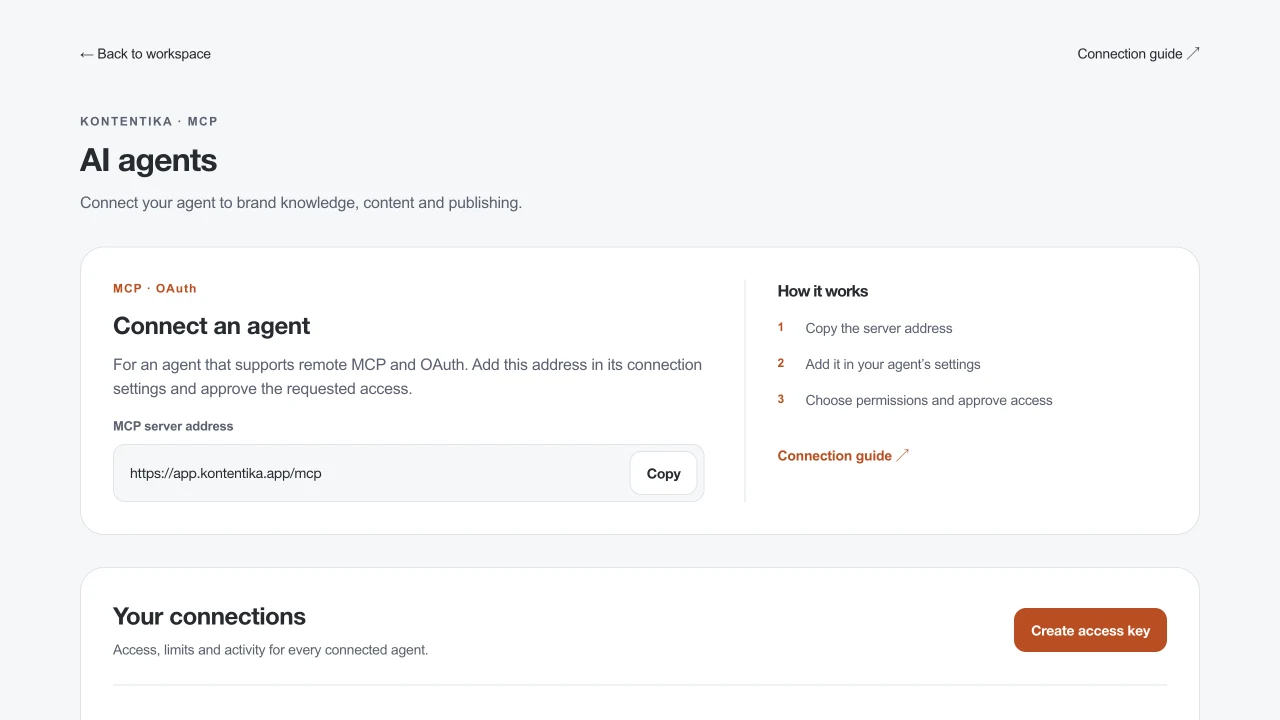
Open “AI agents” in your account. Under “Connect an agent”, select “Copy” next to the server address.
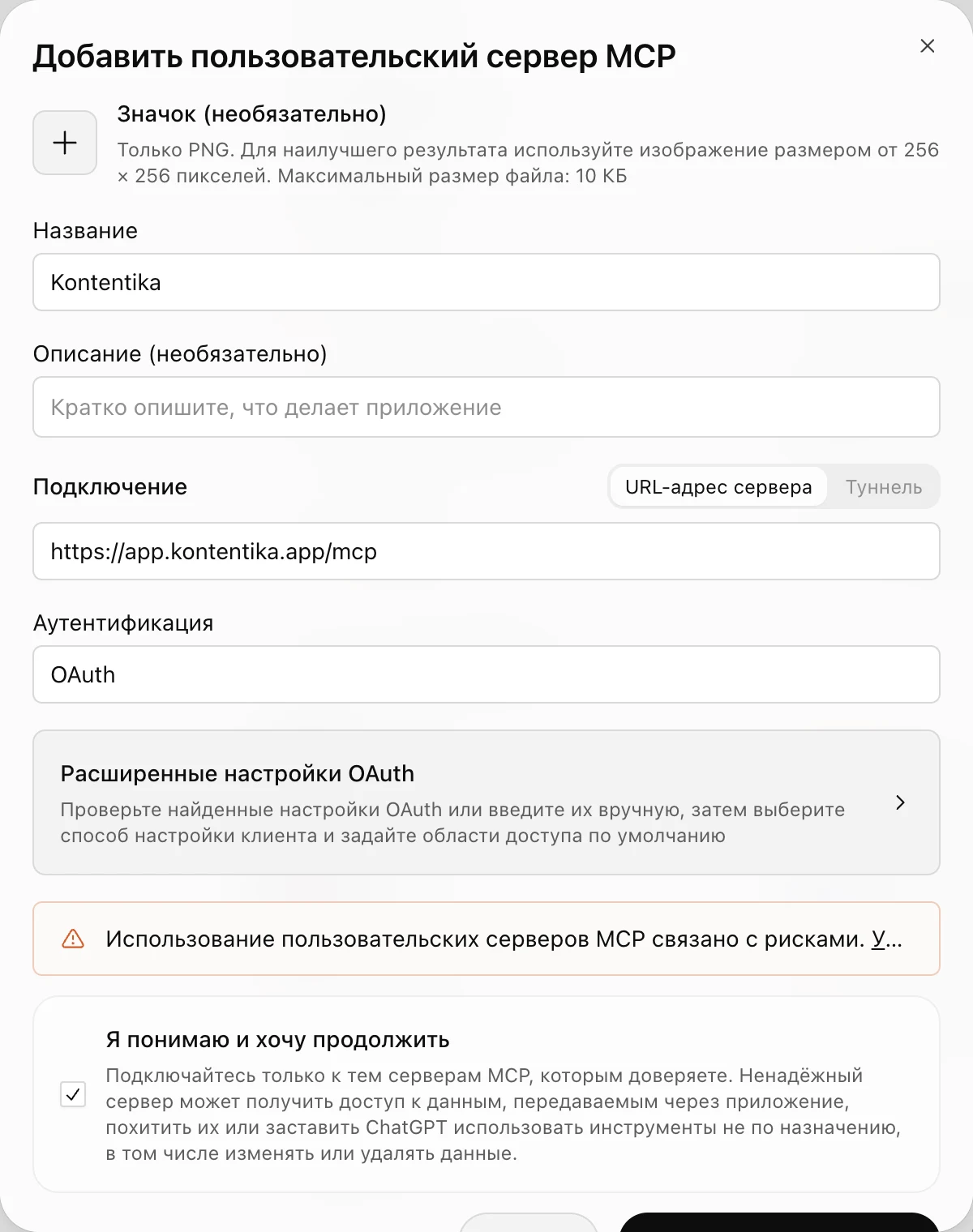
In ChatGPT open “Plugins” → “Add” → “Add custom MCP server”. Name it Kontentika, paste the address above and choose OAuth authentication. Review permissions, create the personal plugin, then select “Connect Kontentika”.
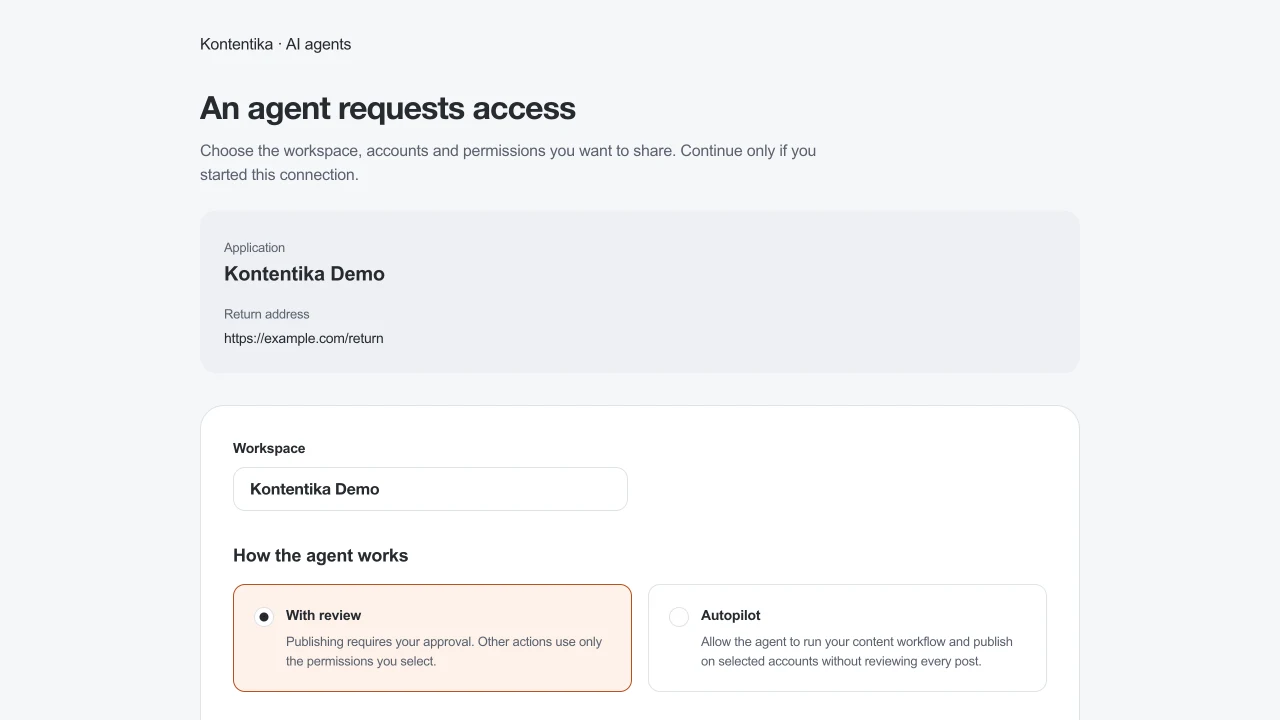
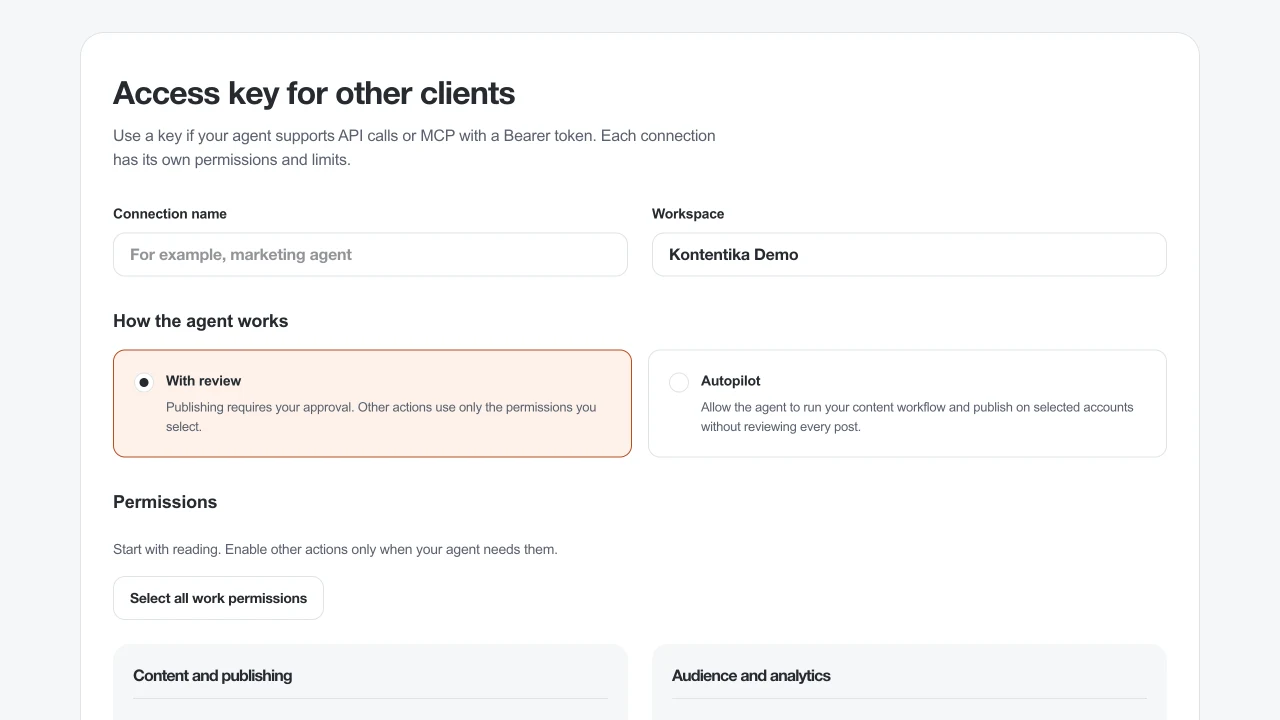
Choose the operating mode and permissions. Reading is enough for an initial check. Autonomous publishing requires Autopilot and a separate confirmation.
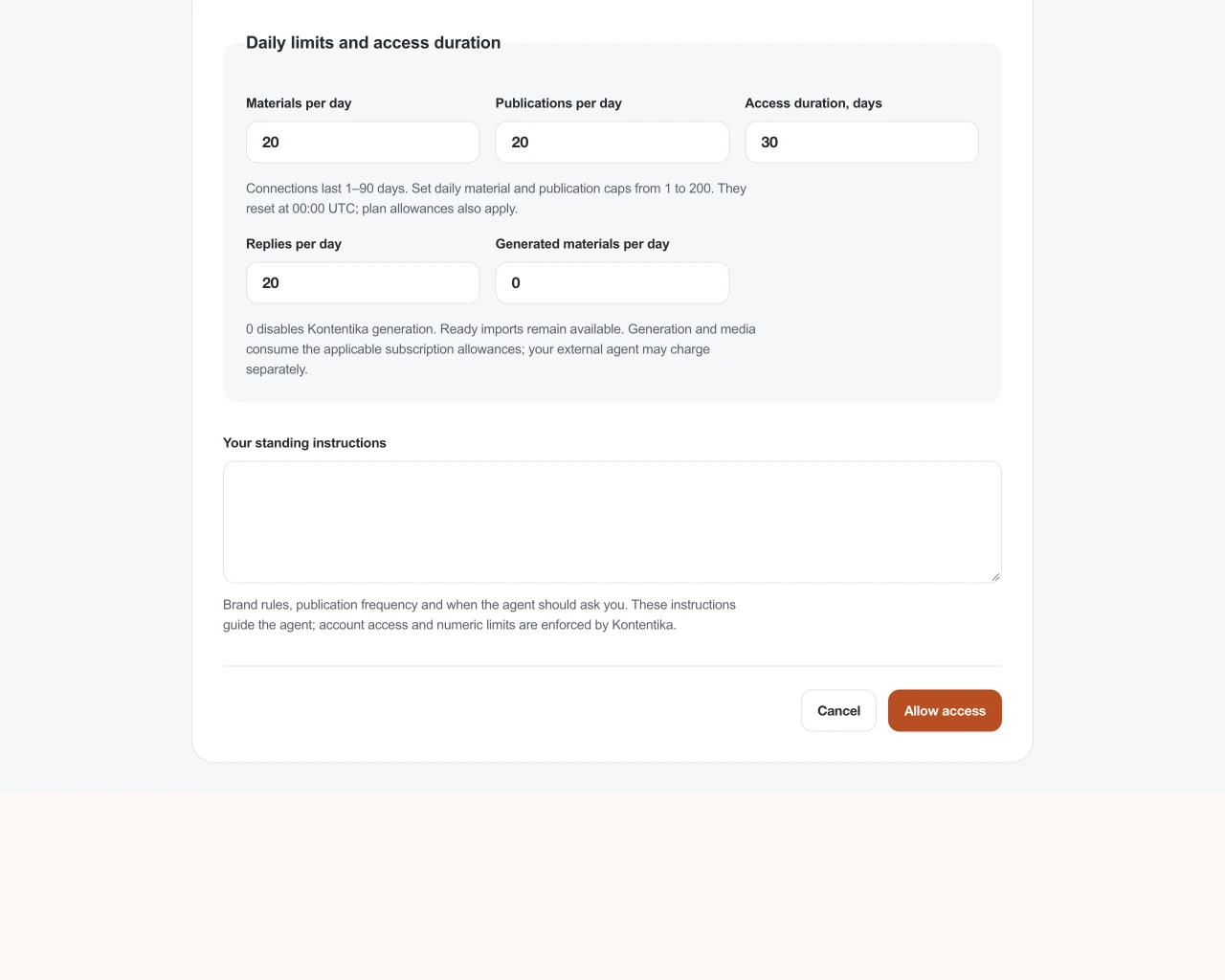
Select accounts, duration or access until revoked, daily limits and standing instructions. Our generation is disabled by default. Select Allow access.
Ask the agent to read the workspace name and drafts. A row appears in “Your connections” and “Last used” updates. Test reading before allowing further actions.
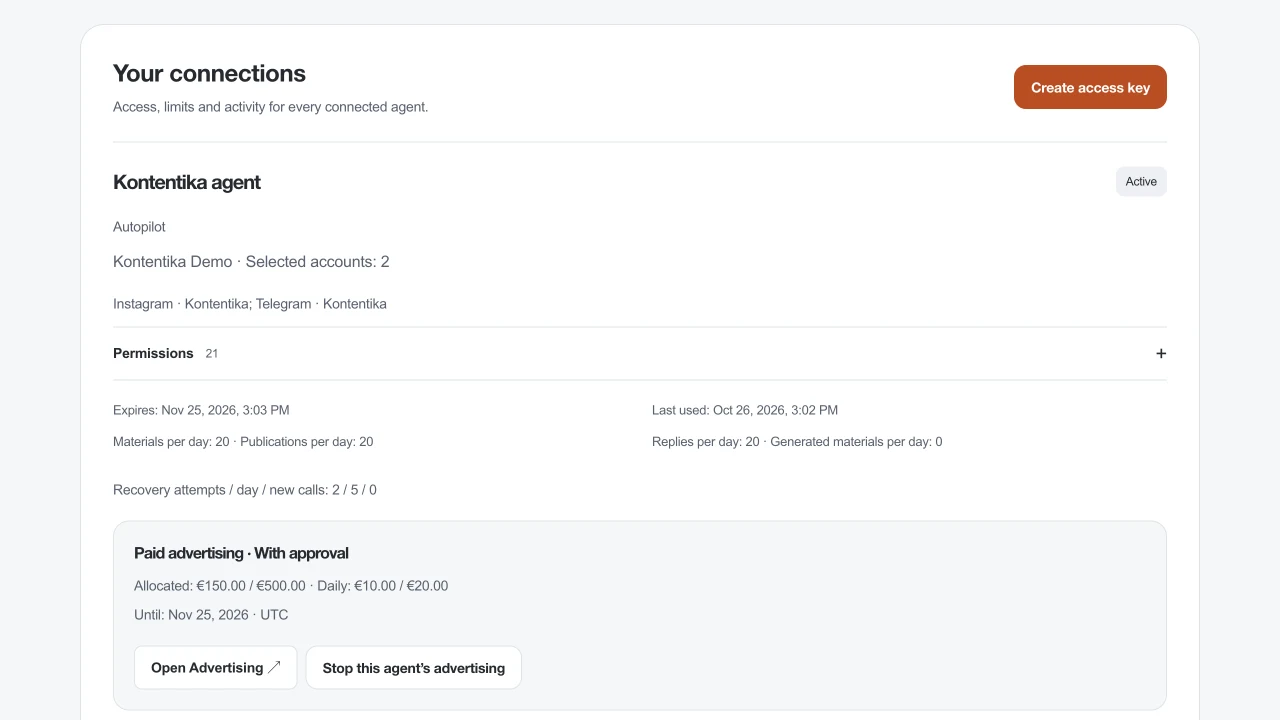
WITH AN ACCESS KEY
Select “Create access key” under “Your connections”. Give each agent a separate connection.
Name the connection and choose workspace, mode and rights. For Autopilot select connected accounts and separately confirm publishing without review.
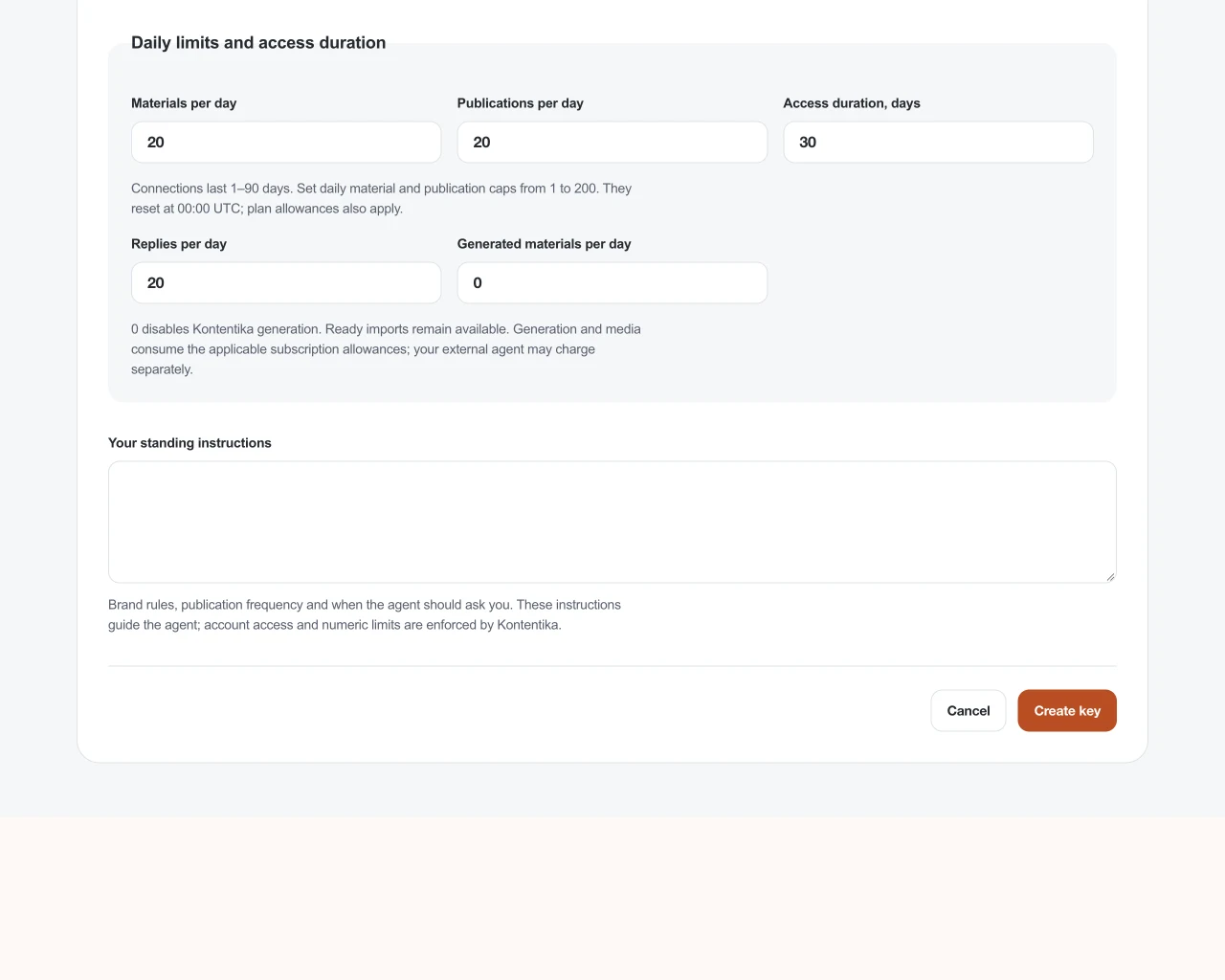
Set limits and instructions. Give our generation a positive daily cap if needed; 0 keeps ready-content imports available. Choose an expiry or access until revoked.
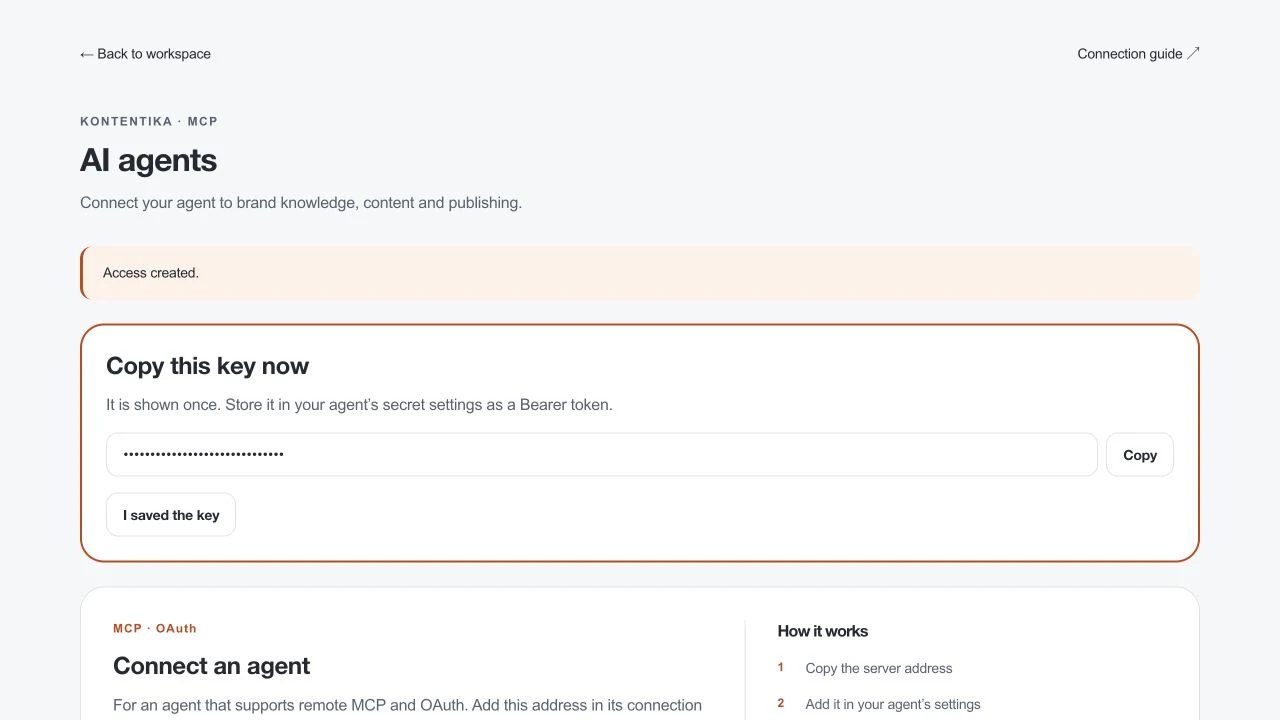
On “Copy this key now”, select “Copy”. Paste it into the agent’s secret connection field, then select “I saved the key”. It cannot be shown again. Never paste it into an ordinary chat or address bar.
Give the agent the server address and ask it to read the workspace. Check “Last used” in “Your connections”. If there are no calls, review the client settings instead of guessing at broader permissions.
TESTED IN A REAL CLIENT
On 24 October 2026 we tested a personal ChatGPT plugin: Kontentika sign-in, permission approval, workspace_context and list_materials calls. We granted read-only access to a test workspace for one day and revoked it afterwards.
Tested on 24 October 2026 in ChatGPT on the web, on the Pro plan, with the “Plugins” menu. Menu names can change: check the official OpenAI documentation below. Connection availability depends on your account and workspace policies. Claude and Cursor are not yet listed as tested. The ChatGPT check covered connection and reading. Background execution and action confirmations depend on the client.
Official OpenAI documentation for connecting ChatGPT ↗First connection check
Use Kontentika to read my workspace name and show one draft. Do not create, change or publish anything.
The agent receives a failure cause, stage and safe next action. Recovery is enabled separately in Agent connections.
Before launch, Kontentika checks the workspace owner subscription, daily and monthly allowances, generation configuration and selected connections. This check creates no content and spends no credits. It does not guarantee remote platform availability.
The agent can resume a failed material or required media from saved state. Successful materials, ready attachments and original identifiers are preserved. Unknown sends are never repeated automatically.
Select “Recover failed stages within owner limits”: 0–5 attempts per job, 1–50 recoveries per day and 0–200 new generation calls. 0 attempts disables recovery; 0 calls permits only work using saved results.
The original publication time is kept by default. You may allow up to 1440 minutes of delay for a local publication waiting on media. Reconnecting accounts and unknown provider outcomes require a human.
The cabinet shows queue state, recovery outcome, cause and new generation call count. Optional automatic recovery of safe failures works without an open chat. Limits reset at 00:00 UTC; credit packs are never purchased. Handoff to a platform is not publication confirmation.
Separately for each connection
This time is fixed and does not follow your account time zone.
Defaults: 30 days, 20 materials, 20 publications and 20 replies per UTC day. Kontentika generation is disabled (0). Autopilot may remain connected until revoked.
Permissions and boundaries
Ready text, image and video imports use zero Kontentika AI credits. Our generation uses applicable subscription allowances. Material/publication limits still apply, and your external agent may bill separately.
View plans ↗Before you begin
After initial setup, yes, for supported content, publishing, audience and analytics operations. Payments and provider access/security checks remain with the owner.
Ready text, image and video imports use zero Kontentika AI credits. Our generation uses applicable subscription allowances. Material/publication limits still apply, and your external agent may bill separately.
It caps accepted actions during a UTC day: materials added, publications admitted, replies and generation. Subscription allowances also apply. The agent can read remaining allowance before starting.
New mutations are paused and local waiting jobs are cancelled. Resume permits new work; it does not restart cancelled jobs or retract published posts.
It needs remote MCP over Streamable HTTP with OAuth or a Bearer token, or the ability to call an HTTP API. Support depends on the assistant and its plan.
Copy this text and send it to your AI agent. It can find the guide and explain how to connect in your client.
Two transports for the same set of actions. These settings are needed only for manual client configuration.
MCP over Streamable HTTP provides remote tools. OAuth with PKCE lets the owner sign in through Kontentika without handing over a key; dynamic client registration is supported.
A Bearer token is a secret connection key. Send it only in the Authorization header. The HTTP API exposes the same actions without MCP.
MCP: https://app.kontentika.app/mcp
HTTP: POST https://app.kontentika.app/api/agent/v1/{tool_name}
Authorization: Bearer <secret>Connect your AI agent once, then manage social work by talking to it. It can maintain brand knowledge, prepare content, schedule posts, reply to your audience and read analytics. Autopilot removes per-post review; you choose the accounts, permissions and limits.
Connect an agent ↗